APQC Website User Guide
TOPICS

1. Go to www.apqc.org or www.apqc.org/register.
2. Type out your corporate email and check the I’m not a robot box. When finished click submit.
3. Once you’ve submitted your registration, a thank you screen will appear and ask that you check your email and validate your corporate email address.
4. A confirmation will be sent to the corporate email address you provided. Click on the verification link within the email and proceed to log in to the system.
5. After you validate your email, you’ll be asked to complete your profile by filling out a form.
6. Fill out the form, and then hit submit. If you reach the screen that says You're Registered!, it means you have successfully completed your registration.
7. After you have registered for the website and logged in, you can access your account information at any time by clicking your name in top right-hand corner of your screen.
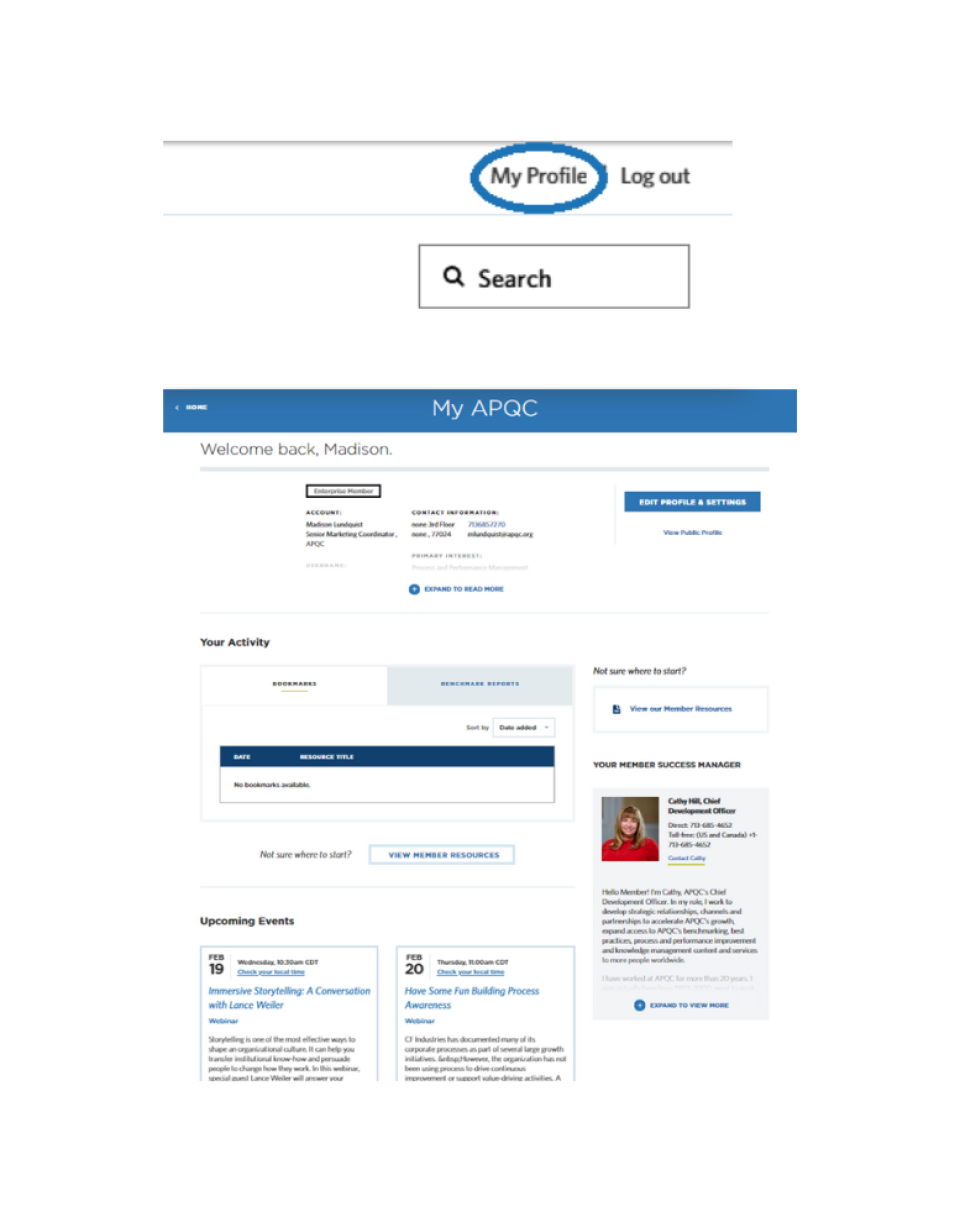
If you are already registered, navigate to the top of the website and click on your name. This page is a summary of your account.
- At the top you will see your profile information.
- Click Edit Profile and Settings to update your password and view your contact detail.
- Under your profile information, on the right-hand side, you’ll see information about:
- Your available member resources. This is a great place to start your journey as a member and discover the full value of your APQC membership.
- Your Member Success Manager. Click the Contact button to contact your account manager with any questions or concerns you may have.
- To the left of your Member Success Manager, you can also view your activity.
- Benchmark reports: here you’ll find any reports you have recently completed.
- Bookmarks: here you’ll find any pieces of content you have bookmarked. To bookmark a piece of content, navigate to it’s page in the Resource Library, and click Add to my APQC under the social icons in the top right.
- Towards the bottom of the page, you’ll find upcoming member events. Click any of the cards to register and learn more.
1. Access the Resource Library by visiting www.apqc.org/resource-library or by navigating to the main menu under resources.
2. The Resource Library landing page will offer several options for finding the content you are looking for.

- Search
- Use the search box located at the top of the Resource Library home page to search for items. Hit the blue magnifying glass to submit.
- Tips for a more effective search
- Add quotes around your search terms to match the entire phrase exactly: “process management” will match fewer content items than process management.
- Remove quotes around terms to match each word individually.
- Consider loosening your query by using OR: process management will match fewer items than process OR management.
- Browse and filter
- On the left hand side of the Resource Library, you can browse By Topic, by Contains, by Format Type, or by Industry.
- Staff Selections
- APQC's research team has hand picked some of their most popular and recently released content.
3. Your search results in the Resource Library will appear as cards, tailored to your preferences.
- Whether you search or browse, you can sort your search results by publish date.
- Additionally, you can check the Include Classics? check box to include Classic content items. These are content pieces that are older than 5 years, but we still feel is relevant and valuable to keep in the Resource Library.
- In your search, you may come across our collections. These are related content items we’ve grouped to make your searches simpler. Clicking on a collection will provide you a list of various content items included in the collection. Click the View Content button and it will take you to the items.
4. Select the content item that interests you. You can click the Download button and immediately begin downloading your content or read the summary for more information.
- Note: Most of the content in the Resource Library is members-only. If you are a member, make sure you are registered and logged in to view the content.
- If you scroll down on the page prior to downloading the item, you will see a list of related resources.
Watch this video to learn more:

Use APQC’s Benchmarks on Demand tool to get just-in-time reports that show how your peers are performing in key areas. Powered by APQC’s Open Standards Benchmarking® database, Benchmarks on Demand gives you essential information to quickly assess the performance landscape for a number of important business processes. Using this information in conjunction with your own assessment of your organization’s performance can lead help develop directional assessments of performance and support existing business cases and decision-making. This tool is free for most APQC members, and available for a fee to professional services members or non-members.
1. Navigate to www.apqc.org/bod. You can also get there by clicking on "Resources" in the main menu and navigating to Benchmarks on Demand. Once there, follow the on-screen wizard to complete the report.
2. First select your measures. You can do so by topic or by searching.
- By Topic - Click the plus and minus buttons to expand the options. Within each topic, i.e. Finance & Accounting, you can also search by category. For example, Cost Effectiveness or Process Efficiency, as shown in the image to the right.
- By Search - Search for the measures you want on the By Search tab. On this tab you can search by Metric ID, PCF Hierarchy ID, or Keyword.
- Once you get your results, click Select to pick the particular measures you want to see in your report. To see what measures you have selected, click Measure(s) Selected in the top right-hand corner blue box. From there you can also remove selected measures you do not want any more by simply clicking the “x”.
3. Now select your peer groups.
- Select your peer groups on the second tab of the wizard. Use the drop-down menus to add your choices. You can add items in each of these categories:Industry, Region or Revenue.
- When you are done, click the Generate Report blue button.
- Looking for custom peer groups? APQC Enterprise Members can request a combination of peer groups of our standard peer group list to be applied to the measures selected. This means your report will provide a single set of data representing the combination of up to three peer groups of your choice. If interested, ask your member success manager.
4. Review your final report.
- See what your report looks like and decide if you want to edit any measures or peer groups.
- Decide if you want to give your report a unique name.
- Click a measure name to learn more,and a pop up will appear with more details.
- Download your report as a PDF or and Excel file.
- You have now completed the Benchmarks on Demand Wizard.
5. Accessing your report at a later time
- At any time, you can access your saved reports by clicking Your Saved Reports in the drop down on the top right hand side of the Benchmarks on Demand tool.
- You can also access them through your profile located at the top of your screen. Look under the activity section and click Benchmark Reports.
Watch this video to learn more:

1. To access Assessments, navigate to www.apqc.org/what-we-do/benchmarking/assessments, or navigate to "Resources" in the main menu and select "Organizational Assessment."
2. Once you are on the assessments page, you will see assessments available in the following topics:
- Education K16
- Finance and Accounting
- Human Capital Management
- Information Technology
- Innovation
- Product Development
- Sales and Marketing
- Supply Chain Management
3. To see what surveys are available in each topic, click a topic in Step 1. Then your options will populate in Step 2: View Available Assessment Surveys.
4. Once you are on the assessments page, scroll down to the APQC Assessments section.
5. Select your topic.
6. Select an available assessment.
7. Click the survey you’re interested in taking in the Participate in a: box. This will take you to the survey’s landing page.
8. On the landing page, click the Download Survey button to start the survey. This will download an excel file of the survey you want to take.
9. Open the excel file. Complete your assessment using the Instruction tab for guidance.
10. Then click the Please click here to upload your completed survey on the Cover tab upon completion.
APQC consistently releases new research via the Resource Library, as well as lists upcoming research and ways you can get involved on the Research Agenda.
The interactive research agenda is a key source of information that lets users know exactly what type of research to expect from our organization in the upcoming year. Users can search for upcoming research and learn more about those projects, as well as how they can get involved. They can also view recently completed projects by research area and access the resulting content.
To access the research agenda, go to the menu at the top right of your screen and click What We Do > Research. Then scroll down to see a list of recent and future research projects for each functional area. You can also access it from the toolbar in the upper right-hand corner of your screen.